Copy My Data
Screenshots
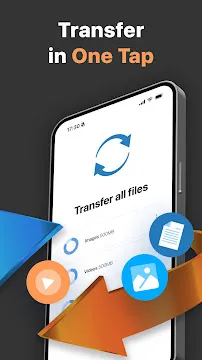
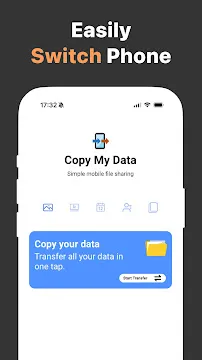
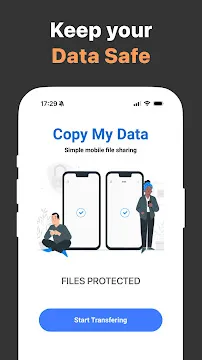
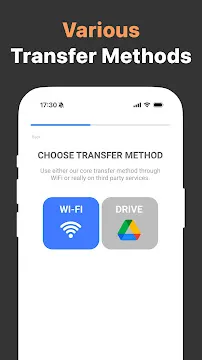
Copy My Data: Transfer Content provides a simple way to move your files between devices. Moving to a new phone often feels like a difficult chore. You worry about losing your photos, contacts, and calendar events. This application removes that stress by using your local Wi-Fi network to migrate data. You do not need cables or a computer to get the job done. The process is fast, secure, and user-friendly for everyone.
Understanding Copy My Data: Transfer Content
Copy My Data: Transfer Content is a dedicated utility tool designed for seamless data migration. It allows users to share essential information without relying on cloud storage or physical connections. The app creates a direct link between two devices. This ensures that your private data stays on your local network.
You can move various types of content using this tool. It supports contacts, calendar entries, and media files like photos and videos. Because it uses Wi-Fi, the transfer speeds are usually much higher than Bluetooth. This makes it an ideal choice for users with large photo galleries or extensive contact lists.
The interface is clean and straightforward. You do not need technical skills to navigate the menus. The app guides you through every step of the connection process. It uses a pairing code system to ensure you connect to the right device. This security measure prevents unauthorized data access during the transfer.
How to Set Up Copy My Data: Transfer Content
Setting up Copy My Data: Transfer Content requires only a few minutes of your time. First, you must install the application on both the old and new devices. Ensure that both phones connect to the same Wi-Fi network. This is a vital step because the app searches for other active devices on the same local connection.
Once you open the app, you will see options to send or receive data. Select the appropriate role for each device. The app will then scan the network to find the partner device. After the devices find each other, a security PIN appears on one screen. Enter this PIN on the second device to establish a locked connection.
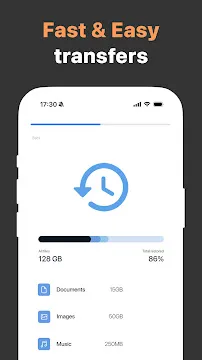
After the pairing is successful, you choose what you want to move. You can select specific categories or move everything at once. The app shows you the size of the data before you start. This helps you manage your storage space effectively. Click the start button and watch the progress bar finish the task.
Key Benefits of Copy My Data: Transfer Content
The primary benefit of Copy My Data: Transfer Content is its simplicity. Many other methods require complex software or expensive cables. This app cuts out the middleman. It gives you full control over your personal information during the migration. You can see exactly what is moving in real-time.
Another advantage is the preservation of data quality. Some messaging apps compress photos when you send them. This utility moves the original files. Your high-resolution memories stay sharp and clear on your new screen. It also maintains the organization of your contacts and calendar dates perfectly.
- No desktop computer required.
- Uses secure Wi-Fi connections.
- Supports all major file types.
- Provides clear progress tracking.
- Works without internet data usage.
Reliability is also a major factor for users. The app handles large batches of data without crashing. If the connection drops, it alerts you immediately. This transparency builds trust and makes the upgrade to a new device much more enjoyable.
Optimizing Your Transfer Speed
To get the most out of Copy My Data: Transfer Content, you should follow a few simple tips. A strong Wi-Fi signal is the most important factor for speed. Move both devices close to the router to ensure a stable link. This reduces the risk of interruptions during large file transfers.
Close other background apps on both devices before starting. This frees up the processor and memory for the transfer task. If you have thousands of photos, the process might take some time. Keep both phones plugged into a charger to prevent them from turning off. A low battery can stop the transfer midway and cause errors.
You should also check your storage space on the new device. Make sure you have enough room for all the incoming files. The app will notify you if space is low, but checking beforehand saves time. If you only need certain things, use the selection tool to skip unnecessary files. This makes the migration much faster and cleaner.
Security Features of Copy My Data: Transfer Content
Security is a top priority when moving personal information. Copy My Data: Transfer Content does not store your files on external servers. Everything stays within your home or office network. This local approach protects you from hackers and data breaches that affect cloud services.
The PIN authentication system adds a layer of safety. No one can accidentally send data to the wrong phone. You must physically see the code on one screen and type it into the other. This manual confirmation ensures that you are always in charge of the process.
The app only accesses the folders you authorize. It does not peek into your private messages or banking apps. It focuses purely on the files you select for the move. This privacy-first design makes it a reliable tool for professional and personal use alike. You can move your work contacts and family photos with total peace of mind.
Troubleshooting Common Connection Issues
Sometimes technology encounters a small glitch. If Copy My Data: Transfer Content cannot find the other device, check your Wi-Fi settings first. Ensure that “AP Isolation” is turned off on your router. This setting sometimes prevents devices from talking to each other on the same network.
Restarting the app on both phones often solves minor detection problems. If the transfer is slow, check if other people are streaming video or downloading large files on the same Wi-Fi. Too much traffic on the network slows down the migration. A quiet network provides the best results for a quick move.
- Check Wi-Fi signal strength.
- Disable VPNs during the transfer.
- Verify both devices are on the same frequency (2.4GHz or 5GHz).
- Update the app to the latest version.
- Clear the app cache if it hangs.
If a specific file fails to move, the app usually skips it and continues with the rest. You can check the summary at the end to see what missed the trip. This allows you to manually move that single file later without restarting the whole process.
Conclusion
Copy My Data: Transfer Content is an essential tool for anyone upgrading their mobile device. It simplifies a technical task into a few easy steps. By using a local Wi-Fi connection, it ensures speed and security for your most important files. You no longer have to worry about complicated cloud setups or lost contacts. The app provides a clear path to a fully populated new phone. Download the tool and experience a stress-free migration today.